
Getting there
The Lesson page is where you open and manage your work based on a publisher’s resource. First, select a chapter, then choose a lesson from the chapter list to open onto a lesson page.
What's on the page
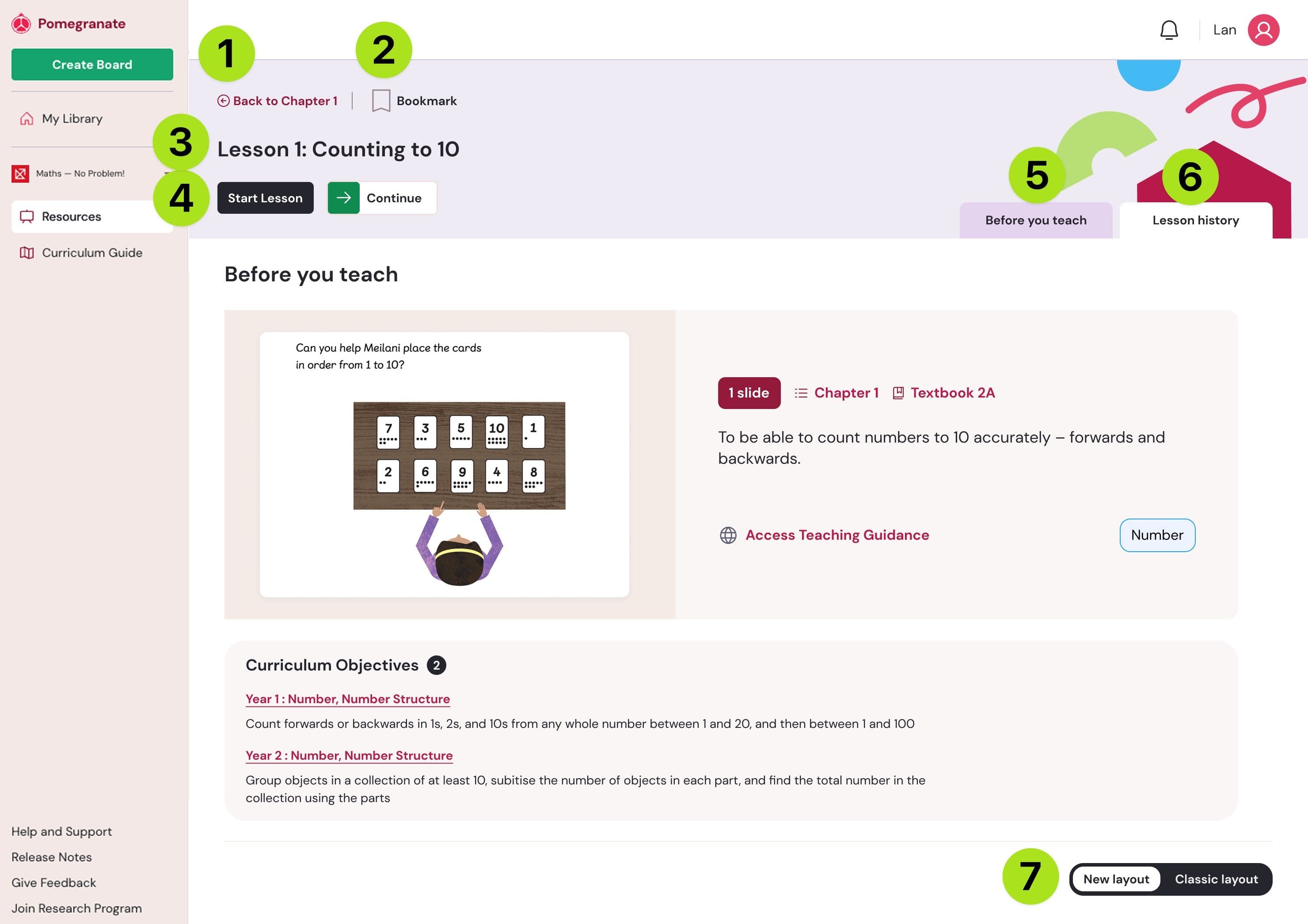
- Back button — takes you back to the chapter list
- Bookmark — save the lesson for easy access later
- Lesson name — shown at the top of the page
- Start and Continue—quick actions
- Before You Teach — information about the lesson
- Lesson History — lists all in-progress work you’ve previously started
- Switch layouts—swap between the classic and redesigned layouts
Starting a lesson
Click the green Start Lesson button to open a new lesson, pre-populated with content from the publisher.
If you've already started this lesson before, you'll also see a Continue Lesson button. This takes you straight to your last opened work, rather than starting over.
Before You Teach tab
This tab loads by default, and gives you everything you need to prepare including:
- A thumbnail of the lesson slides
- The lesson objective
- Guidance information
- Curriculum objectives covered
Lesson History tab
This tab lists every working copy of the lesson, sorted by when you last opened it.
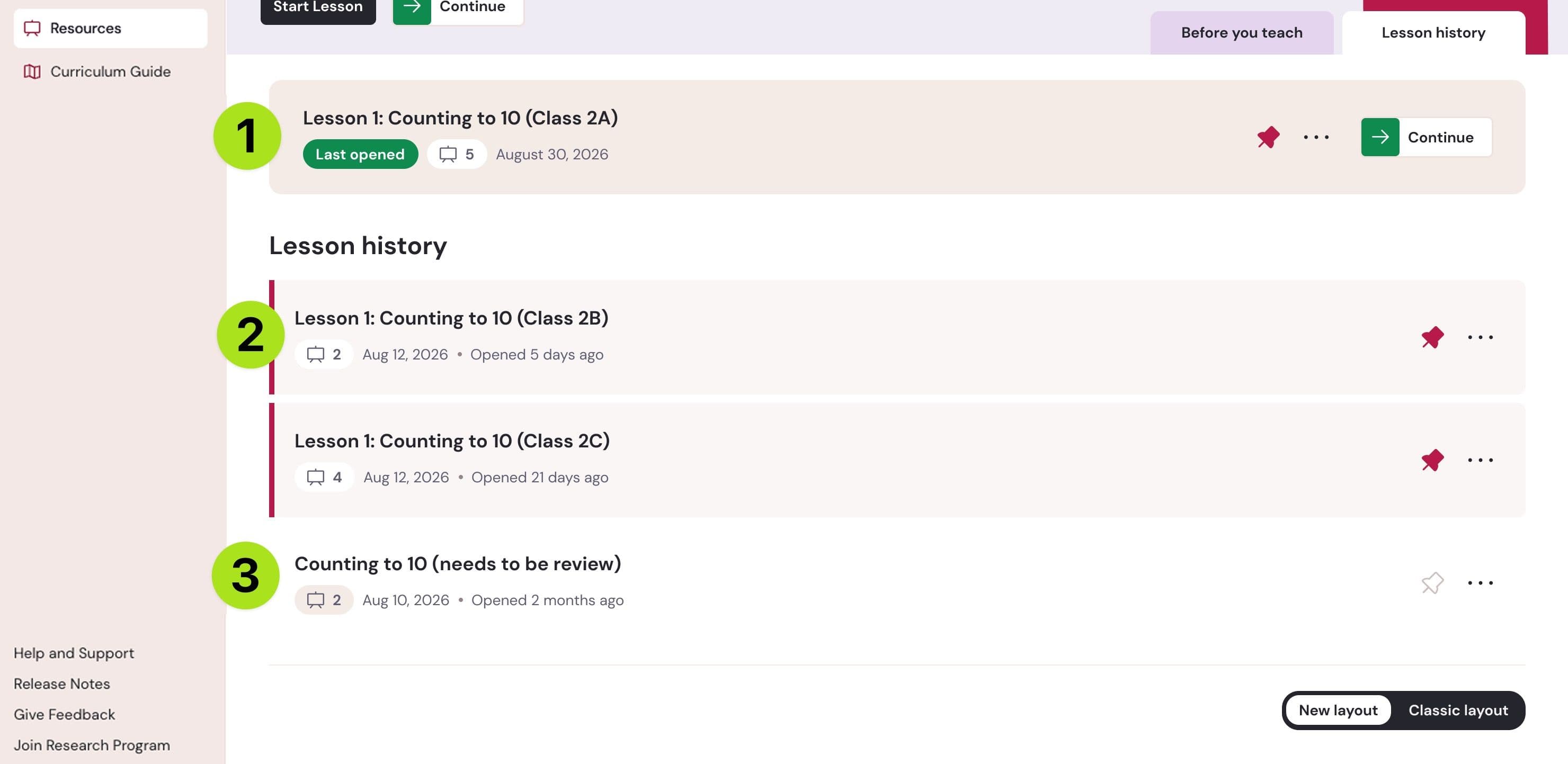
- The green label at the top indicates the most recently opened version
- If there's one you return to often, pin it to keep it at the top of the list.
- Each copy lists out the number of slides, the created date, and the last opened date. You can create as many copies as you’d like and we recommend renaming each copy to keep the list organized.
Read our guide on about how to manage copies of the same lesson
Switching to the classic layout
Prefer the old view? Scroll to the bottom of the page and click Classic Layout to toggle back.