
This article covers how to use the Lesson History tab to manage your lessons, what to expect inside a lesson, how it's different from working in a personal board.
Managing copies of the same lesson
Start as many lessons as you like. Each copy can be edited independently and appears in your Lesson History tab, so a new copy never overwrites another one. Discarding a lesson from this list does not delete the original lesson.
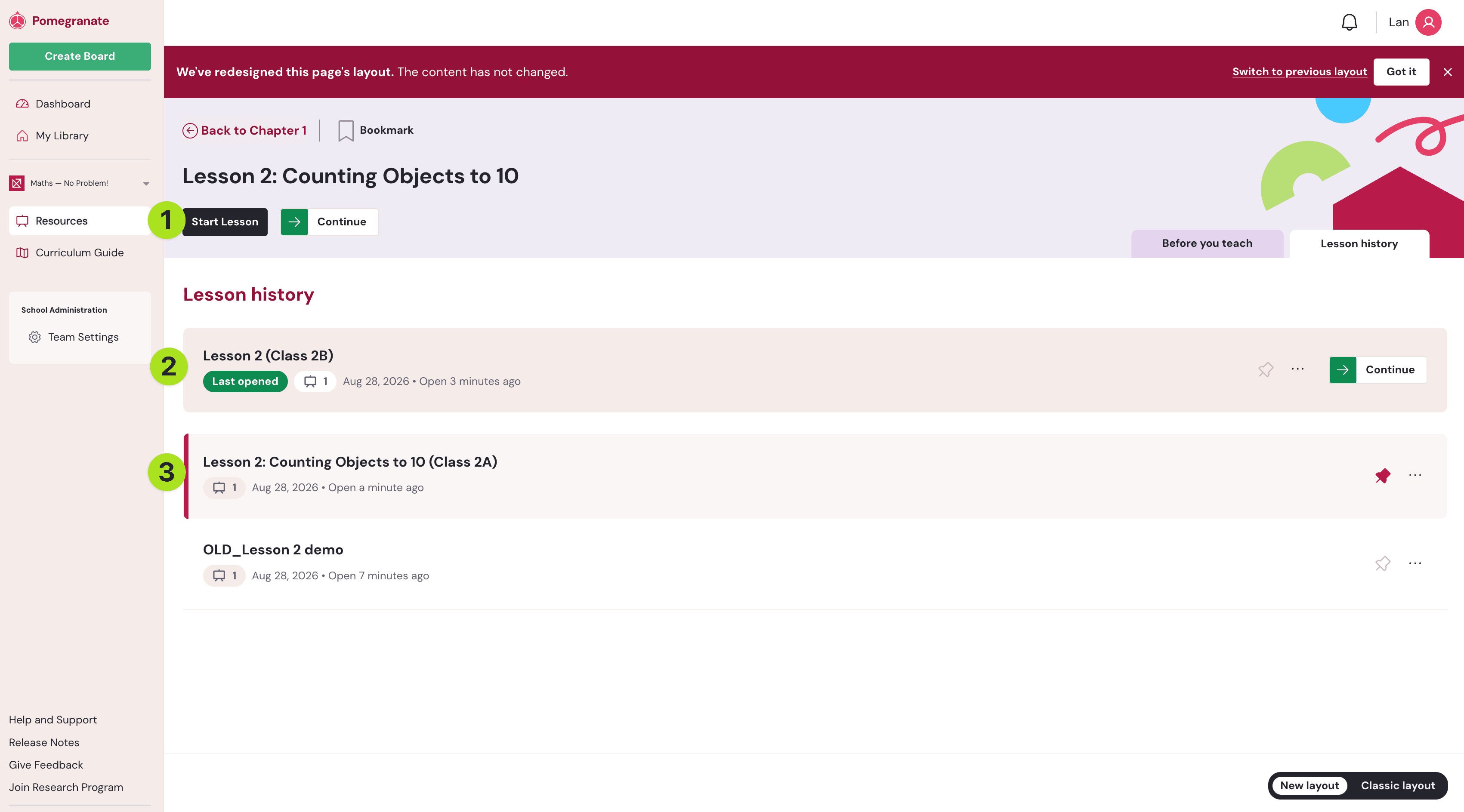
- Start Lesson: Whenever you start a lesson, today's date will automatically appears before the lesson’s title (you can of course rename it!)
- Continue: Opens straight to your last opened copy of this lesson
- Pinned Lessons: You can rename, discard and pin lessons to the top of the list. This may be useful if you intend on teaching the same lesson for different scenarios and students.
Publisher content by default
Starting a new lesson always opens with the publisher's content already in place — slides, structure, and materials are populated from the start.
Reverting changes
If you want to undo all of your own edits, you can revert a single slide or revert the entire lesson.

- Revert a slide restores that slide to its original publisher content, undoing anything you added to it. Hover over a slide thumbnail, click on the three dot icon and click “Revert to Original”.
- Revert all slides does the same across the entire lesson — every slide returns to the publisher's original version, and anything you've added throughout is cleared. Click to open the board dropdown menu, and click “Revert All Slides”
Reverting is a permanent action, so it's worth knowing that you cannot perform “Undo” and “Redo” actions related to reverting.
How lessons differ from personal boards
A lesson isn't the same as a personal board. Because it's built on publisher content, some things behave differently. Lessons always start with publisher content you can teach with and adapt, compared to a blank canvas you're building from scratch.